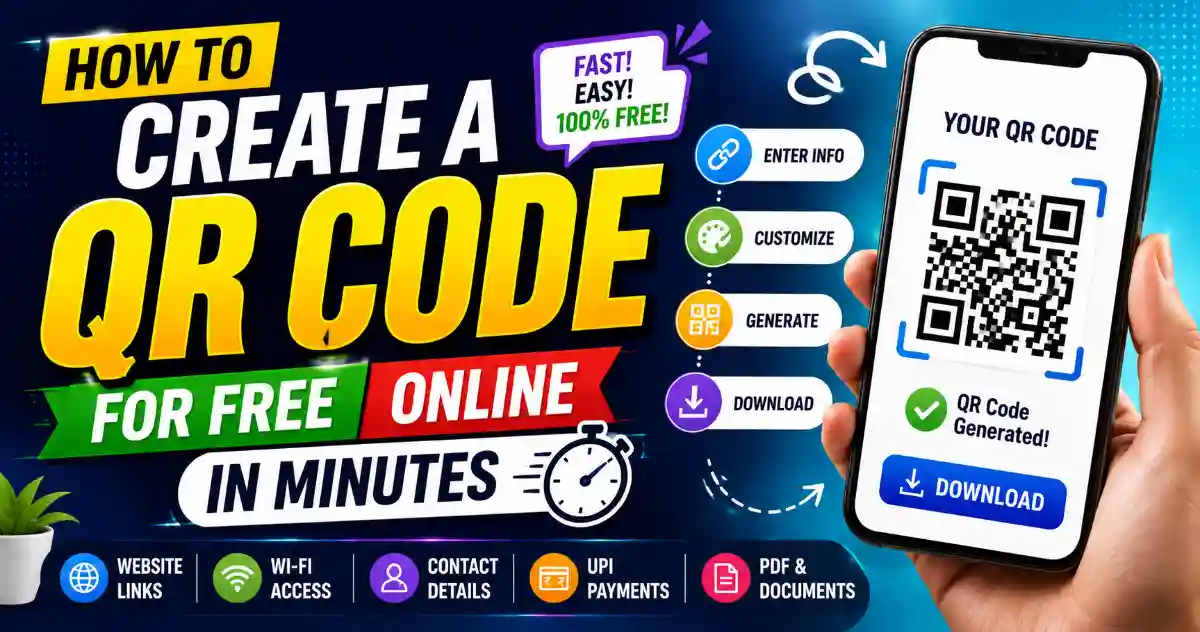
Learn how to create a QR Code for free online in just a few minutes. Follow this beginner-friendly step-by-step guide using QR Bnao.
Whether you want to share your website, WiFi password, UPI payment details, contact information, or social media profile, you can generate a QR Code in just a few minutes without any technical skills.
In this guide, you'll learn how QR Codes work, how to create one for free, and a few simple tips to make sure your QR Code scans perfectly.
What Is a QR Code?
A QR Code (Quick Response Code) is a square-shaped barcode that stores digital information.
When someone scans it using a smartphone camera, the encoded information opens instantly.
A QR Code can contain:
- Website URLs
- Text
- WiFi credentials
- UPI payment details
- Phone numbers
- Email addresses
- SMS messages
- Contact cards (vCard)
- PDF links
- Social media profiles
- Google Maps locations
Why Use a QR Code?
QR Codes save time.
Instead of typing a long website address or password, users simply scan the code.
Businesses, schools, restaurants, freelancers, and online creators use QR Codes every day because they're quick and convenient.
Some common examples include:
- Restaurant menus
- Business cards
- Product packaging
- Event tickets
- Digital payments
- Marketing campaigns
- Customer support
What Can You Create?
With QR Bnao, you can generate QR Codes for many different purposes, including:
- URL QR Code
- Text QR Code
- WiFi QR Code
- UPI QR Code
- Phone Number QR Code
- Email QR Code
- SMS QR Code
- vCard QR Code
- PDF QR Code
- Social Media QR Code
Choose the type that matches your needs, enter the required information, and generate your QR Code in seconds.
How to Create a QR Code for Free
Creating a QR Code takes only a few simple steps.
Step 1: Open QR Bnao
Visit the QR Bnao website and choose the QR Code type you want to create.
For example:
- Website
- WiFi
- UPI
- Contact
Step 2: Enter Your Information
Fill in the required details.
Examples:
- Website URL
- WiFi Name (SSID)
- Password
- UPI ID
- Phone Number
- Email Address
- Text Message
Double-check your information before generating the QR Code.
Step 3: Customize Your QR Code
If customization options are available, you can personalize your QR Code by changing:
- Colors
- QR style
- Corner style
- Background
- Logo
- Size
Keep the design simple so the QR Code remains easy to scan.
Step 4: Generate the QR Code
Click the Generate QR Code button.
Within seconds, your QR Code will be created and displayed on the screen.
Step 5: Download Your QR Code
Download your QR Code in your preferred format.
Depending on the available options, you may be able to download:
- PNG
- SVG
Choose a high-quality format if you plan to print it.
Step 6: Test Before Sharing
This step is often overlooked.
Before printing or sharing your QR Code:
- Scan it with an Android phone.
- Scan it with an iPhone.
- Make sure it opens the correct content.
- Check that the linked page loads properly.
Testing takes less than a minute and helps avoid mistakes.
Common Mistakes to Avoid
Many QR Codes fail because of simple errors.
Avoid these mistakes:
- Entering the wrong website URL.
- Using a low-resolution image.
- Making the QR Code too small.
- Adding too many design elements.
- Printing without testing.
- Using poor color contrast.
Best Practices
Follow these tips for better results.
Use HTTPS Links
Secure websites build trust and work better across devices.
Keep a Quiet Zone
Leave enough white space around the QR Code.
Without proper spacing, scanners may struggle to detect it.
Choose High Contrast
Dark QR Codes on light backgrounds scan much faster.
Print in High Resolution
If you're printing brochures, posters, or business cards, use high-quality image files.
Test on Multiple Devices
Different phones use different camera software.
Always test before publishing.
Where Can You Use QR Codes?
QR Codes work almost everywhere.
Popular places include:
- Business Cards
- Posters
- Product Packaging
- Restaurant Tables
- Event Tickets
- Brochures
- Flyers
- Store Displays
- Payment Counters
- Classroom Materials
Frequently Asked Questions
Can I create a QR Code for free?
Yes. QR Bnao lets you generate several types of QR Codes online without any complicated setup.
Do I need an account?
Depending on the QR Code type and available features, many QR Codes can be generated without creating an account.
Can I print my QR Code?
Yes.
You can print QR Codes on business cards, banners, posters, product labels, packaging, and menus.
Which QR Code type should I choose?
Choose the type based on your goal.
- Website → URL QR Code
- Payment → UPI QR Code
- Internet Sharing → WiFi QR Code
- Contact Sharing → vCard QR Code
- Customer Support → Phone or Email QR Code
Are QR Codes permanent?
It depends on the QR Code type and the service being used. Always review the available options before creating your QR Code.
Conclusion
QR Codes make sharing information faster and easier. Whether you're promoting a website, collecting payments, sharing contact details, or giving customers instant access to important information, a QR Code removes the need for manual typing.
With QR Bnao, you can create different types of QR Codes in just a few minutes. Simply choose the QR type, enter your details, generate the code, and test it before sharing. A well-designed QR Code saves time, improves convenience, and works across almost every modern smartphone.